Replica Automation Management
Replica automations are available to franchises only. If your LoopSpark account is not part of a franchise using LoopSpark, this feature will not be available within your account.
🔍 Filter Automations by Source (Custom vs Replica)
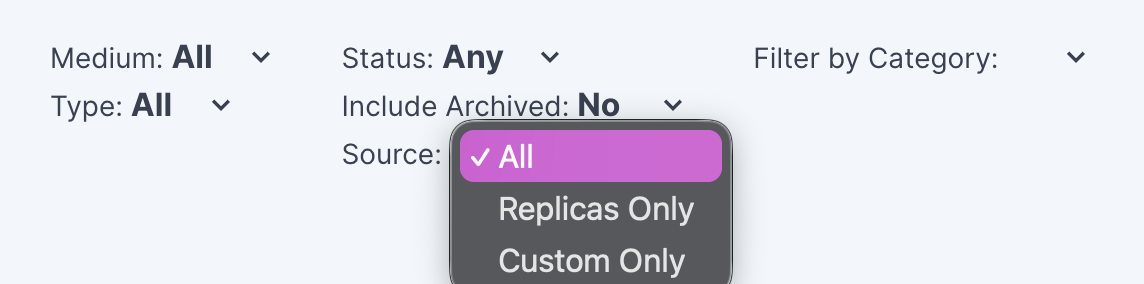
You can filter your automation list by Source on the Automations page:
https://app.loopspark.com/automations
Available filters:
- Custom Automations – Automations created directly at your location
- Replica Automations – Automations provided by your HQ team
This makes it easier to:
- Identify custom automations that may be outdated or misconfigured
- Spot potential conflicts between local automations and HQ-provided replicas
- Clean up and standardize your automation list more efficiently
🔵 Replica Badge Indicator

Replica automations are now clearly labeled with a blue “Replica” badge in the automation description.
This makes it easy to distinguish HQ-provided automations from custom ones at a glance.
🔄 Re-Align Replica Automations with Default Settings
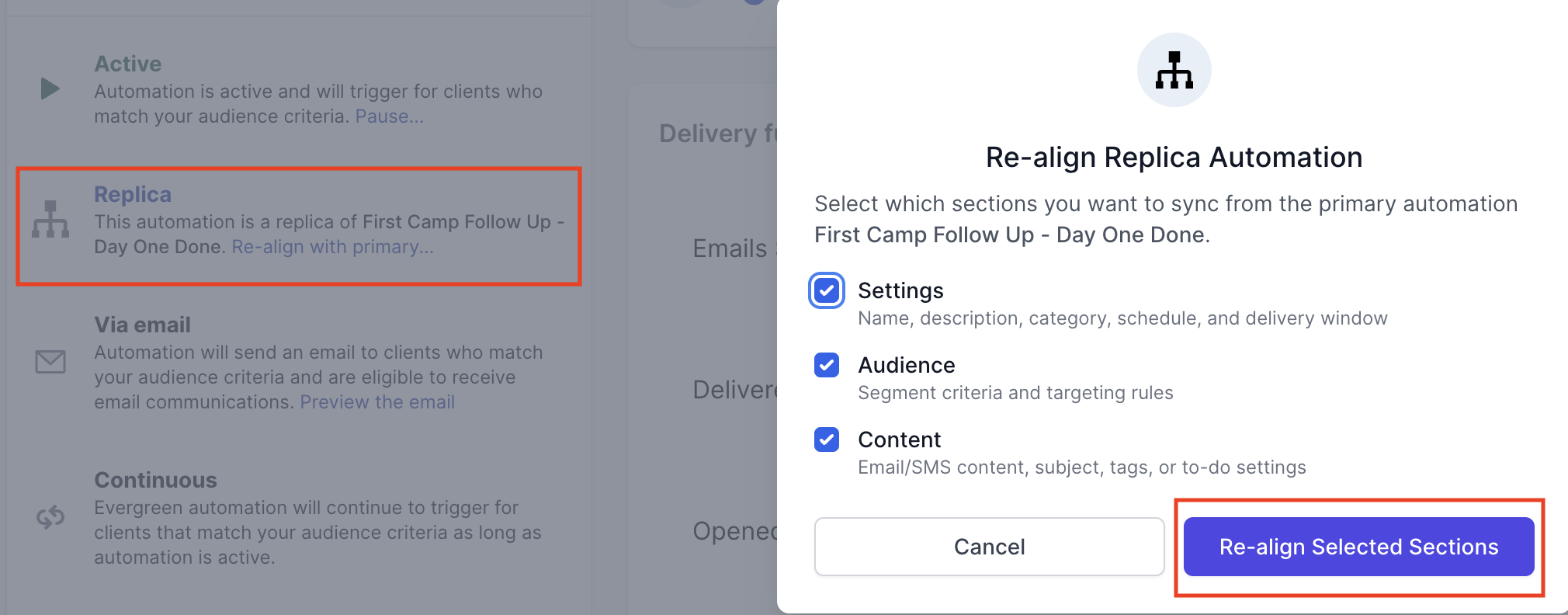
If a replica automation has been modified locally, you can now reset it to match the HQ default configuration.
You may choose to fully reset the automation or selectively re-align specific sections:
- Settings – Name, description, schedule, delivery window, automation type
- Audience – Default audience rules
- Content – Default messaging content
How to Re-Align a Replica Automation
- Open the automation from your list:
https://app.loopspark.com/automations - On the automation detail page, locate the Replica section in the left column (below Activate / Pause)
- Click “Re-align with primary”
- Select the sections you want to reset and confirm Re-align Selected Sections
This ensures your replica automations stay consistent with HQ intent while still giving you flexibility when needed.
If you have any questions or need help reviewing your automations, please contact the LoopSpark Support team.