Mindbody Profile Field Mapping
Client records in Mindbody can be updated through LoopSpark forms. By selecting the form option Save a PDF while setting up a form, an additional option will become visible Update profile in Mindbody.

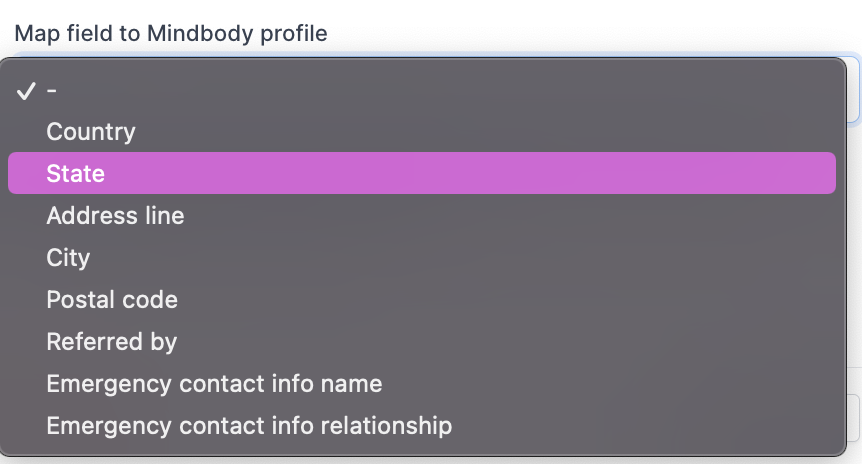
Selecting this option will provide additional options when adding form fields, allowing you to map form fields back to client profile records on Mindbody.
Fields left blank by customer:
In the event a form field is not mandated and an existing client does NOT complete the field, the client’s record in Mindbody will not be updated.
Example case: Form field in LoopSpark Mobile phone is not required on a custom form you create, but is mapped back to the Mindbody field Client mobile phone number. In this case, we would NOT overwrite the client’s record in Mindbody, preventing instances where submitting a form in LoopSpark would remove existing client data in Mindbody (in this example, Client mobile phone number in Mindbody would not be overwritten).
Only one field per form can be mapped back to a specific Mindbody profile section. For example, you cannot have two phone input fields that are both mapping back to a client’s mobile phone section in Mindbody.
Form Fields & Available Mindbody Profile Mapping
Below is a list of each LoopSpark form field, and available options to map back to Mindbody profiles.
Short text input
- Client Address: Street Address
- Client Address: City
- Client Address: State
- Client Address: Postal code
- Client Address: Country
- Referred by
- Emergency Contact Name
- Emergency Contact Relationship
Checkbox
- Liability Release
Email Address input field
- Emergency Contact Email Address
Phone input field
- Client Mobile Phone
- Client Home Phone
- Client Work Phone
- Emergency Contact Phone
Date input field
- Client Birthdate
Long text input
Long text input is a great way to ask clients to explain any injuries or health concerns. Mapping this field back to Mindbody’s red alert section will allow your staff to quickly identify clients that may need workout modifications.
- Client Red Alert
- Client Yellow Alert
Mindbody Form Submission Requirements
To ensure forms submitted through LoopSpark are successfully uploaded into Mindbody, and that new client accounts are created when your form is configured to do so, the requirements below must be met.
⸻
Required Fields in Mindbody
Mindbody allows you to define required fields for client profile creation. If your Mindbody account has required fields enabled, LoopSpark must collect and map each required data point correctly during form submission.
If any required field is missing, optional, or incorrectly mapped, Mindbody will not create a client account, even though the form submission itself may succeed.
⸻
Supported Required Fields (LoopSpark → Mindbody)
The following fields can be mapped from LoopSpark forms to Mindbody and may be used to generate a client account upon form submission:
•   Client Address: Street Address
•   Client Address: City
•   Client Address: State
•   Client Address: Postal Code
•   Client Address: Country
•   Client Birthdate
•   Client Mobile Phone
•   Client Home Phone
•   Client Work Phone
•   Referred By
•   Emergency Contact Name
•   Emergency Contact Relationship
•   Emergency Contact Email Address
•   Emergency Contact Phone
Only the fields listed above are supported for account creation.
⸻
Important Limitations
A Mindbody account will NOT be created from a LoopSpark form submission if any of the following are true:
- Your Mindbody account requires any field not listed above. Example: If Gender is set as required in Mindbody, account creation will fail because this field cannot be mapped from LoopSpark forms.
- A required Mindbody field is not mapped to the corresponding LoopSpark form field.
- A required data point exists on the LoopSpark form but is not marked as mandatory.
- The submitted form does not contain values for all required Mindbody fields.
⸻
Required Configuration Checklist
To ensure successful account creation:
- Confirm which fields are marked as required in your Mindbody account.
-
Ensure each required field:
-
- Is supported by LoopSpark
-
- Is present on the form
-
- Is correctly mapped to Mindbody
-
- Is marked as mandatory on the form
-
Test form submission using a brand new client profile.
⸻
Learn More
For additional details on configuring required fields in Mindbody, refer to their documentation: https://support.mindbodyonline.com/s/article/202988236-Client-required-fields?language=en_US